Tab Manager
Tab Manager is a Chrome extension for keeping tab-heavy sessions under control from a side panel. It combines idle suspension, memory-saving actions, smart grouping, search, snapshots, and archive into one unified workflow.
Date: March 24, 2026
About the Extension
Tab Manager is a Chrome extension for keeping tab-heavy sessions under control from a side panel. It combines idle suspension, memory-saving actions, smart grouping, search, snapshots, and archive into one unified workflow.
What It Does
Tab Control
- Suspend Idle Tabs — discards tabs idle longer than your configured threshold, keeping them in Chrome so they reload on revisit.
- Close Duplicates — closes tabs with the same normalized URL, keeping the active one.
- Archive Idle Tabs — moves idle tabs out of the window into the archive list for later restore.
Grouping
- Auto Group by Domain — keeps same-domain tabs together and updates grouping whenever new tabs open or navigate.
- Duplicate Group Cleanup — merges duplicate same-domain groups inside the same window automatically.
- Group by Domain — manually groups all tabs in the current window by domain in one click.
- Ungroup Tabs — removes all current tab groups.
- Search & Custom Group — search across open tabs, multi-select any combination, name the group, pick a color, and create it in one step.
Search
- Tab Search — real-time search across all open tabs by title or URL, with keyboard navigation (↑↓ to move, Enter to jump, Space to select, Esc to clear).
- Results are prioritized: title prefix matches appear first, then title contains, then URL contains.
Session Management
- Save Current Tabs — stores the current session as a named, restorable snapshot.
- Archive Restore — restores archived tab batches back into Chrome from the side panel.
Bulk Operations
- Multi-select tabs — enter selection mode from the tab list, check any number of tabs.
- Bulk Close — close all selected tabs at once.
- Bulk Archive — archive selected tabs (active tab is protected from accidental archiving).
- Move to New Window — move selected tabs into a brand-new Chrome window, preserving tab order and pinned state.
UI Overview
Side Panel
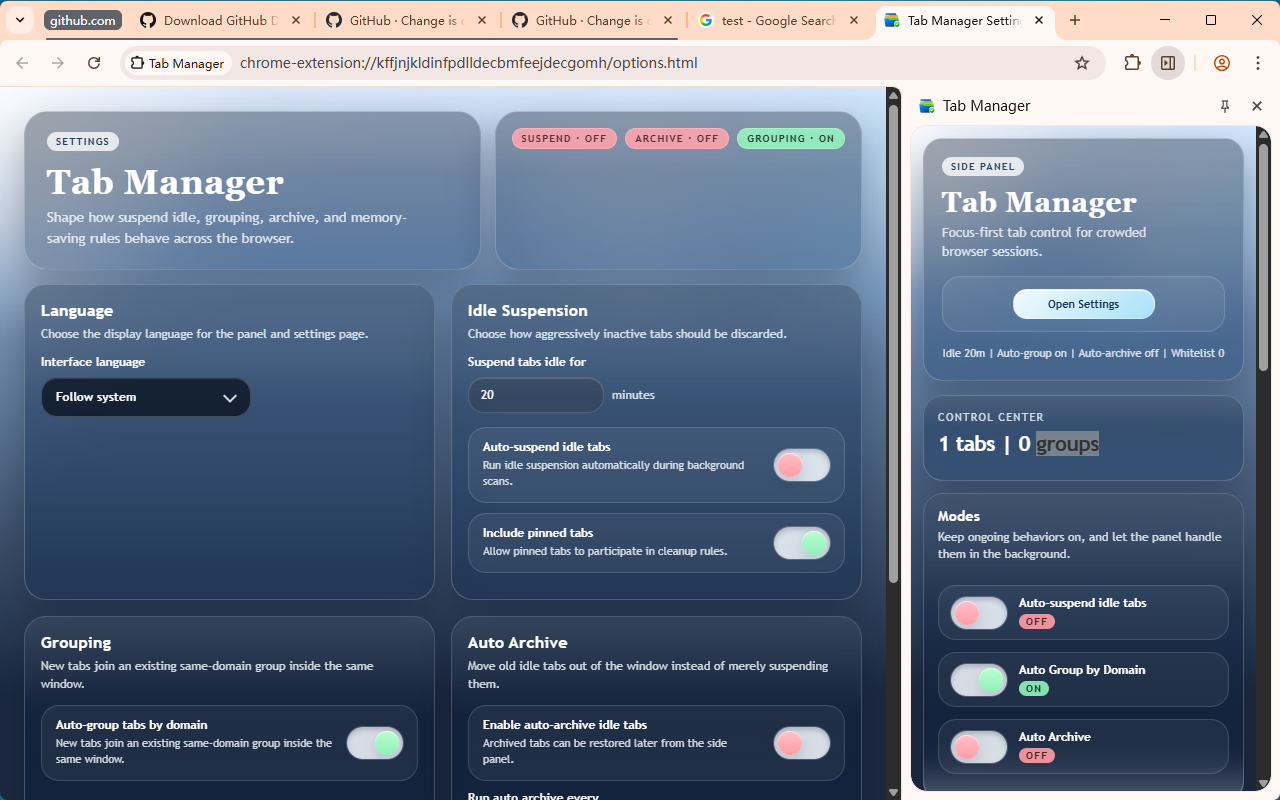
The extension uses Chrome’s side panel instead of a popup. The panel includes:
- Live Stats — current tab count and group count, updated in real time.
- Search & Group — unified search bar with multi-select and inline group creation. Type to filter, click or Space to select, fill in a name and color, then create the group without leaving the panel.
- Modes — toggle switches for Auto-suspend, Auto Group by Domain, and Auto Archive, each with visible On/Off state.
- Actions — one-click buttons for Suspend Idle, Group by Domain, Ungroup, Close Duplicates, and Archive Idle Tabs.
- Tab List — scrollable list of open tabs with selection mode for bulk operations. Click any tab to jump to it; enter selection mode to multi-select and bulk-act.
- Snapshots — save, restore, and delete snapshot entries.
- Archive — restore and delete archived tab batches.
- Action Toast — shows the result of the latest action at the bottom of the panel.
Settings Page
- Idle Suspension — set idle time and quick presets (Light, Balanced, Aggressive).
- Auto-group tabs by domain — background grouping for new or updated tabs.
- Include pinned tabs — allow pinned tabs to be included in group and suspend flows.
- Auto Archive — automatically archive tabs after a longer idle threshold.
- Whitelist Domains — domains that stay active during suspend and archive flows.
How To Use
Open the Extension
- Click the extension icon in the Chrome toolbar to open the side panel.
- If the side panel does not open automatically, right-click the extension icon and choose the side panel option.
- After any code change, reload the extension from
chrome://extensions.
Everyday Workflow
- Add frequently-used domains to Whitelist Domains in Settings.
- Turn on Auto-group tabs by domain to keep new tabs organized automatically.
- Use Search & Group to find tabs quickly and group related ones by topic or project.
- Use Suspend Idle Tabs to reclaim memory without closing tabs.
- Use Save Current Tabs before switching context or closing the browser.
- Use Archive Idle Tabs for a cleaner window when you need to focus.
Search & Custom Group
- Type in the search bar to filter tabs — results update instantly.
- Click the checkbox on any result row (or click a row when others are already selected) to multi-select.
- A group bar appears at the bottom — enter a group name and pick a color.
- Click Create to group the selected tabs. The list refreshes automatically.
- Press Esc once to clear the selection; press Esc again to clear the search query.
Bulk Operations
- Open the Tab List section and click Select to enter selection mode.
- Click any tab rows to check them. A floating action bar appears at the bottom.
- Choose Close, Archive, or New Window from the action bar.
- Click Cancel or press Esc to exit selection mode.
Snapshots
- Click Save Current Tabs to capture the current session.
- Click Restore to reopen the saved tabs alongside existing ones.
- Click Delete to remove a snapshot from storage.
Archive
- Click Archive Idle Tabs to move qualifying idle tabs into archive storage.
- Archived tabs are removed from the current window.
- Click Restore in the archive list to reopen them.
Reviews
5 out of 5 stars